Dispo Adventures, Episode 1: Reverse-engineering and “running Windows 95” on a disposable vape with a colour LCD screen

As seen on Hackaday!

TL;DR: Disposable vapes can have LCD screens…?! At least they’re moddable now – check out my GitHub for docs, tools, and links to similar projects if you want to try this on a Kraze HD7K or Raz TN9000 (maybe some others too).

Disposable vaping devices have become distressingly common in recent years, and an increasing ecological burden given how many (perfectly reusable!) lithium-ion batteries are discarded into landfills and roadsides alike. Even worse, some of them include flashy colour LCD screens! I’ve been collecting and harvesting disposable vapes from my friends for a few years now, but only recently have I had a chance to take some of these LCD-equipped models apart; while doing so, I figured I could pioneer some reverse-engineering efforts while adding custom theme/skin support along the way. (For the record, I don’t vape or smoke but plenty of my friends do. I’m just in it for the batteries and electronics.)

A modified Kraze HD7K disposable vape, with my custom Windows 95 theme applied.

A modified Kraze HD7K disposable vape, with my custom Windows 95 theme applied.

The vape in question is found in my area of Canada as the Kraze HD7K, but it seems to go by other names like the Raz TN9000. Internally, they are the same minus some firmware and logo differences.

Disclaimer & Safety Information

Harvesting disposable vapes is not without its own risks, and I will not accept any responsibility if something goes wrong if you try it yourself. This should only be attempted if you are familiar with handling lithium-ion batteries and the safety implications that they pose.

Nicotine can enter your bloodstream simply by getting vape juice on your skin (so wear gloves!), and can be messy if it gets on your clothes and workspace.  The enclosed lithium-ion battery can also cause burns or property damage if short-circuited, and are usually not equipped with protection circuits; the fact that these cells can push several amps in such a small package is the precise reason they’re (wastefully) used in this application. Rechargeable disposable vapes pose a slightly higher risk if the cell is near or at full charge when disassembled, whereas pure disposables are almost always fully discharged. Discharged cells inherently hold less energy and this reduces the fire risk should a catastrophic failure occur during disassembly, but they still need to be treated with respect. Overdischarged cells below 2 volts may not necessarily recover, but if you decide to attempt a recovery, you must bring them back up to 3 volts at a very low current (on the order of tens of milliamps), after which it is possible to charge them normally.

Vapes harvested from the roadside should only be picked up when it is safe to do so, and should be inspected for damage as soon as possible. These “street lithium” vapes could be water-damaged and also physically damaged from getting run over by vehicles. Any cells with a punctured or torn pouch/casing are unsalvageable and must be recycled. My own experimental data finds that the majority of run-over cells survive, but I would not recommend using them without being absolutely sure that there is no further internal damage (after charging the cell with supervision, it should have at least 90% of its rated capacity and no appreciable self-discharge after a few weeks of rest. Otherwise, put it in the recycle bin where it belongs). Even then, only use them in applications where their failure will not cause collateral damage, like in an outdoor solar-powered lamp that is kept away from anything flammable. If you’re not comfortable with these conditions, just recycle the vape at an appropriate facility in accordance with local regulations (some vape shops will have recycling bins, and hardware stores often will accept rechargeable batteries for recycling too).

Teardown

Without any screw holes, I needed to find another way to (non-destructively) open the vape. I noticed a seam in the bottom end cap, and found that sliding a slotted screwdriver into that seam and some gentle prying action was able to dislodge the internal clips. Once that cap was free, a sliding airflow “switch” fell out as well. Removing the core of the vape was pretty straightforward, but it did require some pliers to pull it out due to its friction-fit construction.

With the core exposed, I could see that the vape uses a 13450-size lithium-ion pouch cell (13mm diameter, 45mm length) and a generously-sized vape juice reservoir, with a sponge to absorb the juice and prevent it from leaking. I also noticed a small 9-pin right angle header that connected a black “logic board” that held a microcontroller and LCD screen, and a green “power board” that had the inhalation sensor, heating coil connector, USB-C connector and solder pads for the battery.

Reverse-Engineering

The three main components of the vape’s logic board are the microcontroller, an SPI NOR Flash chip, and the LCD screen.

The microcontroller is a Nations Tech N32G031K8Q7-1, containing a 48MHz Arm Cortex-M0 CPU, 64k of internal Flash and 8k of SRAM; the SPI Flash is a 1MB Giantech GT25Q80A-UZLI; and the LCD is of an unknown maker but has a part number of FXD096QQ08B-F, with a resolution of 80×160 pixels.

Given that the LCD is what makes this vape particularly special, I decided to look into what controller and pinout it uses. I had a hunch that it would use a common interface and controller (to keep costs low), and searched for a 0.96″ LCD with 13-pin FPC (flexible printed circuit) connector. This led me to the Smart Prototyping #102106, which used a 13-pin connector and seemed to have a compatible pinout. The aforementioned LCD uses a common ST7735S controller, and is controlled through a 4-wire SPI interface (clock, data, command/data select, chip select). (Additionally, I looked on Alibaba for a similar LCD, and found one source that sells them for about $1.25 each in large quantities; this suggests that the displays themselves add significant cost to the vape, but are still cheap enough to be utilized in a throwaway device.)

I searched other websites for LCDs with the same dimensions and connector, and they all used this pinout:

Pin Name Function
1 TP0/NC Unused (may be used for some touch sensor?)
2 TP1/NC Unused (may be used for some touch sensor?)
3 SDIN SPI data to LCD
4 SCLK SPI clock
5 RS Logic low = command, high = data
6 /RST Reset (active-low)
7 /CS Chip select (active-low)
8 GND Power supply/signal ground
9 NC Not connected
10 VDD Power supply (3.3V)
11 LEDK LED backlight cathode
12 LEDA LED backlight anode
13 GND Power supply/signal ground

To ensure that the pinout I was looking at really matched up with what was in the vape, I connected the data, clock and other control lines to my DSLogic Plus logic analyzer and sniffed the traffic as the vape initializes the display. A glance at the logic analyzer data confirmed the pinout.

To further confirm that I had an ST7735S-based display, I resoldered the LCD onto a TSSOP-to-DIP breakout board (which was annoying, as the pin pitch was slightly different and alignment needed much precision), and used the Adafruit Graphics Library and ST7735S driver on a Teensy 3.0 microcontroller, and it worked! Well, mostly. While black-and-white text worked perfectly, the red and blue channels seem to be swapped around when using the tft.initR(INITR_MINI160x80) routine, and it seems that I wasn’t the only one with this issue.

I decided I was finished with the idea of reusing the display alone, and began looking into how the vape itself works, and how it displays images. The first step was to look into the memory contents of the 1MB SPI Flash, as that is a pretty large amount of memory for such a simple device. I desoldered the chip and mounted it on a SSOP-to-DIP adapter, and dumped its contents to a file using my MiniPro TL866CS universal programmer.

My suspicions were confirmed when I analyzed the image data being sent to the LCD matching what was in the beginning of the SPI Flash. The data also looked like it was in a raw “RGB565” format, which is a method of packing a 16-bit pixel into two bytes of data; the term “565” refers to 5, 6, and 5 bit values belonging to the red, blue and green channels respectively. Since the image on the screen used blue in the top-left of the image, this supported my findings since the data similarly had only set bits belonging to the blue channel, and also further describes the data as being “big-endian” assuming that the red bits are read out before the green and blue.

The data seemed to be transferred in 4096-byte blocks, which I speculated to be performed using DMA (direct memory access); the data transfers seemed too fast and regular to be done in software alone. This later proved to be true when I had a chance to analyze the RAM of a working vape.

(Flash) Map-Making

With the 1MB SPI Flash chip dumped, it was time to take that apart too… but digitally! Armed with a spreadsheet, a hex editor, ImageMagick and an online RGB565 renderer by Rinky-Dink Electronics, it was time to begin the (grueling) process of unpacking the entire SPI Flash’s contents.

My first step was to try extracting the first image frame, which I calculated to be 25,600 bytes in size (80 x 160 x 2 bytes per pixel). The next step was to use ImageMagick to convert the raw RGB565 data into a PNG for viewing on a computer:

magick convert -size 80x160 rgb565:<file>.bin <file>.png

The result looked like an image, but the colours were all incorrect! I then tried the Rinky-Dink online RGB565 renderer, which didn’t have this issue. Most of my attempts were performed with ImageMagick since it was easy for me to carve and test different image sizes. (Later on, I decided to pipe in an RGB test image and it seems that ImageMagick interprets what should be RGB data as BRG…)

Attempting to convert the rest of the images felt like I was staring into The Matrix, trying to make sense of scrambled image data that looked like an autostereogram (the ones where you need to cross your eyes to form an image). Since the data on the Flash was raw and undocumented, I had no idea where each image began and ended, and what their resolutions were. It took a lot, and I mean a LOT, of trial and error to figure out the mappings.

This slideshow requires JavaScript.

One by one, I catalogued each image and added it to my spreadsheet, documenting its address, length, resolution, what category it belonged to, and if it was in a sequence of images (an animation, essentially).

This slideshow requires JavaScript.

This continued up until I was over 95% through the entire 1MB address space, and I even found unused animations (or at least unused for the version customized for my area). There was a bit of blank space, which I ignored for a while… but as it turned out, there was some other hidden data stored further down (it was the counter that the vape used to determine how many “bars” of juice to display). I won’t show the whole table since it’s over 100 rows long, but here’s an excerpt (you can find the whole table on my GitHub if you’re interested):

Index (#)

Offset (Hex)

Length (Hex)

Frame H (px)

Frame V (px)

Category

Seq (#)

0 0 6400 80 160 Background 0
1 6400 2880 72 72 Battery Icon 0
2 8C80 2880 72 72 Battery Icon 1
19 33D00 6400 80 160 Vaping Animation 0
20 3A100 6400 80 160 Vaping Animation 1
72 D53E2 6400 80 160 Plugin Background 3 0
73 DB7E2 E9A 21 89 Charger Logo Wipe 0
74 DC67C E9A 21 89 Charger Logo Wipe 1
104 F8000 4 N/A N/A Total Vape Time x0.01s (LSB->MSB) N/A
105 F8004 1 N/A N/A Vape In Use Flag (0xBB) N/A

Toolcrafting

With the whole SPI Flash mapped out, I was able to, with much help from ChatGPT, make a couple custom tools: a Flash image splitter and repacker. I also used the Rinky-Dink UTFT library‘s conversion tools to enable replacement of the image data (i.e. custom theme support). Imagine that – custom theme/skin support on a vape, now a reality! With no help from the manufacturer!

Rationale

You might be asking: why anyone would do this? Honestly… I’m not sure; I just was fascinated by a colourful disposable vape and just had to thoroughly take it apart and learn everything I could about how it worked. Maybe this could give a reason for people to attempt to refill (and therefore reuse) their disposable vapes, and a reused vape is a vape that doesn’t end up in the landfill or roadside – and frankly, that’s good enough reason for me.

With the tooling set up, it was time for me to prove that these vapes can be rethemed, and I thought of a great retro aesthetic that is completely different from the original theme, yet easy for me to make with simple image editing tools: Windows 95.

It runs Windows 95?!

Okay, not really… but I wanted a cohesive but entirely different theme to apply to the user interface, and I’m not nearly artistic enough to go about making a Doom theme (I tried, but couldn’t think of much that would work within the limitations of the original firmware). Using little more than a copy of Windows NT 4.0 (essentially the enterprise/professional version of Windows 95), some virtual machines, screenshot and recorder tools, and Microsoft Paint, I was able to create a UI that faithfully recreates the nostalgic Windows 95 user interface in a tiny 80×160 space.

Tip: if you need to frequently reprogram a device that uses an external (serial) memory chip, consider adding or making a socket for it. Additionally, vapes that use a 2-pin microphone element for inhalation sensing can be activated by shorting the pins to ground with a pushbutton, or even capacitively with your finger. If the vape requires a load to be present, a small halogen bulb will do the trick.

Main Screen

The main screen features the classic teal background, with two “windows” to represent the battery charge and vape juice levels. In keeping with Windows UI mechanics, the juice level is rendered as if it were an inactive window.

Battery Level

The battery icon, while looking trivial to implement, required a lot of manual work to create the icons. From Windows 95 through XP, the default Windows UI’s battery icons were very limited in granularity: full, half, near empty, and empty. I had to employ “tweening” techniques by copying rows of pixels and aligning them to the desired levels, then manually painting in pixels where required. I also used a slightly more-detailed icon set from Windows XP which added a bit more of a highlight on the left side of the icon, rather than a flat blue colour. While it does somewhat detract from the “purity” of the icon set, the improved appearance was worth the tradeoff.

Vape Juice Level

The juice level representation was a lot more challenging to conceive. I thought of using the Recycle Bin icon, but figured that making icons between empty and full wouldn’t produce a very unambiguous representation. I also thought about the magenta/blue pie chart used to represent disk usage, but that option was ruled out for similar ambiguity issues (I know that magenta is free space, and blue is used space, but this might not be intuitive enough without some sort of legend).

I finally figured that I had just enough room to make the world’s tiniest Explorer window, with just enough space for six 16×16 small icons. I picked a selection of icons that one would see in the C:\ root directory: folder, batch file, system file, application, .ini settings file, and unknown file (the one with a small Windows logo on it). As the vape juice is depleted, an icon is removed from the window. Once the juice is deemed by the microcontroller to be completely depleted, the blinking folder icon almost becomes homage to a similar phenomenon on Mac computers if it cannot find an operating system to boot.

Charging Animation

This one was another challenge, mainly due to the limited animation size of thirty 21×89 frames in an off-centre position atop a static background; not only that, the firmware dwells on the last animation for about a second, so any animation loop will need to stop cleanly at the last frame. The lack of animatable screen space meant that a file copy dialog was a non-starter, and the Windows 95 boot screen was also infeasible. I eventually settled on a small “Charging…” dialog box, with the animated hourglass cursor in the middle. One concession that I had to make was doubling each cursor animation frame, as well as losing one corner and edge of the hourglass during the initial animation sequence, as the hourglass is 22 pixels wide for the first few frames. Thankfully, this happens quickly enough that it isn’t particularly noticeable. I had pondered overlaying this dialog box atop the main UI’s “windows” but found the result to be too crowded in appearance, so a single dialog on the teal background was chosen instead.

Vaping Animation

This one was arguably the most fun yet the most frustrating to actually implement. I knew I wanted to use a screensaver for the vaping animation, but which one? I needed a screensaver that was both iconic, but also looped cleanly. Flying Windows was a contender, but proved to scale down poorly and, due to its random nature, looped poorly as well. 3D Flower Box was skipped for the same reason (and wouldn’t have looked good looping once per second anyway). 3D Maze, 3D Text, and the simple graphic screensavers like Marquee, Mystify and Beziers were out too… so what’s left? Only one screensaver was left in the pipeline… a 3D pipeline – heh, get it? 😉 (sorry. I’ll see myself out for that joke.)

3D Pipes is one of the most famous Windows 95-era screensavers, and despite its randomly-generated nature, had relatively clean transitions which make looping animations easier. It also scaled well both in terms of resolution and in time, but was an absolute pain to record. I eventually settled by running the Windows 95 version in a Windows XP virtual machine, with a custom screen size as close to a 1:2 aspect ratio as possible. After taking a screen recording, I had to then choose the sequence that looked the best, extract 16 frames from the video, scale those down to 80×160, and only then did I get my looped screensaver animation, but the result was well worth the effort. The particular run that I captured even had a flame-like shape to it!

Other Discoveries

With my main goal of extracting and replacing images on the vape accomplished, I decided to look further into its inner workings and learned a few things along the way.

A Secret Port

During my initial teardown, I noticed that the microcontroller’s SWD (Serial Wire Debug) programming lines were brought out to the USB-C port, but in an unusual way. The CC1/CC2 lines were not only used as regular 5.1k pulldowns to enable USB-C chargers to recognize the vape, but also as a programming connector. I had to build a custom cable to interface with it, but was able to use my Segger J-Link to communicate with the microcontroller in situ. As a bonus, the firmware is fully readable, without any encryption or readout prevention enabled!

It’s Not About The Puffs

For a device marketed with a capacity of several thousands “puffs”, one would think that this would be tracked as a means to provide a vape juice gauge to the user. However, this turned out to not be the case, in more than one way.

Vape Usage Counter

The vape usage/time counter at exactly 10 seconds of usage. 0x3E8 = 1000, or 10.00 seconds.

Unlike many other disposable vape implementations, the juice meter’s data was stored in a non-volatile memory location, since neither a reset nor power cycle would reset the meter back to full. I was initially unsure where the microcontroller was holding this variable, and scanning the internal Flash memory and the extra few “option bytes” available above the usual firmware region showed no changes. It wasn’t until I decided to run a difference on the external SPI Flash between “puffs”, where I noticed bytes changing near location 0xF8000, in a sea of empty/0xFF bytes. Erasing the bytes from locations 0xF8000-0xF8004 resulted in the vape juice meter resetting back to full! Since vape inhalation sensors typically include a 10 second timeout, I decided to trigger a 10-second “puff” and noticed the memory location had updated to 0x3E8, which corresponds to 1000 in decimal. It was then easy to determine that the microcontroller was counting vape time with 0.01-second granularity.

A Beeline to the Buffer

Since I had access to the microcontroller’s memories in near-real time, I decided to experimentally determine where the data from the SPI Flash was getting copied into RAM. Since I already knew the microcontroller was using DMA to stream image data from the SPI Flash, I figured that I could fill its entire contents with human-readable text (in my case, I chose consecutive copies of the “Bee Movie” script) and observe the RAM’s contents changing in Segger J-Mem. This technique worked immediately, and it was obvious where the DMA buffer was held in RAM!

Blinking Power, Hidden Version (Screen)

Out of boredom and wanting to repeatedly test the charging animation during development, I was rapidly connecting and disconnecting power to the charging port. After several consecutive fast insertions and removals, I saw a black screen with red text pop up. It read “GV-K23 0904V1” and trying to capture it was difficult until I had the idea to use J-Link Commander to halt the CPU as soon as I triggered it. Given that the version screen had text, yet I saw no text strings in the firmware dump, I figured it had to be a bitmap image, and it was! It was stored near the very end of the firmware. While identifying where it was inside the dump was simple, trying to reconstruct it from the dump was not. The extra padding of 0x00 bytes (basically black when interpreted as RGB565) that didn’t align with 60 pixel/120-byte rows, it took a lot of experimentation with image sizes and offsets until I got a legible picture. Even now I’m still not entirely sure if I’ve captured the entire bitmap.

Further Efforts

In the time between me starting this reverse-engineering/modding project and my publication of this blog post, I released my documentation and rudimentary tools on my GitHub profile in the hopes of drumming up more support from the community. Within days, another GitHub user by the name of “xbenkozx” was able to apply and extend my research into the external Flash memory mapping and debugging facilities. He created his own Flash dumping and modding tools, and even built custom reflashing firmware that only needed access to a SWD debugging/programming dongle and a custom cable – no surface-mount soldering required (i.e. programming that is beyond my current skillset 🙂 ). He also made more detailed analyses of various board revisions, and some important incompatibilities that could have resulted in damage due to overheating of the vape’s heating coil. Check it out!

Hopefully this reverse-engineering and reuse campaign can branch even further. Perhaps development environments (maybe an Arduino board profile?) or alternative firmwares can be developed to allow these boards to be reused in other applications, given that these vapes already provide easy access to a bright LCD screen, a decently powerful Arm microcontroller, Li-ion battery charging, and a megabyte of SPI Flash storage plus some extra LED indicators. Some board versions even have Rx/Tx pads for a UART serial port, which could make communication between different devices a possibility.

In terms of just theme creation, I made an editable template on my GitHub repository, with example bar graphs and animation frames denoting positioning and frame count. Maybe someone out there with more graphics/artistic/programming talent than me could figure out a way to “run Doom” on these vapes! 😀

Conclusion

Disposable vapes are almost everywhere, and their wastefulness goes beyond just some rechargeable batteries and circuit boards – some have bright LCD screens… and yet somehow these are considered throwaway devices!

If you have some of these LCD-equipped disposable vapes like the Kraze HD7K or RAZ TN9000, perhaps try playing around with them a bit. I’ve spearheaded a community campaign on GitHub to reverse-engineer these vapes, which allows them to be reused or repurposed more easily. If you want to take the path of reuse, I and some others have made customization and reflashing tools available. There is also potential in reusing just the microcontroller board since the vape features a pretty powerful microcontroller and a lot of storage space for images.

PPS For All: Directly charging lithium-ion batteries with a USB-C PD tester

TL;DR – USB-C with PPS (Programmable Power Supply) technology is here, it’s cool, and now it’s usable on more than just the newest smartphones – it works on almost any Li-ion battery with the right USB-C tester. Check out the GitHub repo – it’s open-source!

As seen on Hackaday!

DISCLAIMER: Lithium-ion batteries can be dangerous if mishandled or abused! While much testing and development has resulted in a fairly stable implementation, this application is still an “off-label” use of a USB PD charger and USB-C tester, and therefore there is a risk of property damage, personal injury, or other unforeseen consequences if something goes wrong (and I will NOT be held responsible for that!).

Introduction

The USB PD (Power Delivery) standard has revolutionized how we charge our everyday electronic devices. While many new devices (such as smartphones) emphasize “fast charge” capability, it has required changes to both the device itself, as well as the adapters that power them.

Because power losses in the charging cable (or any other resistance) is directly related to the amount of current flowing through it, one can get more power for the same amount of current by increasing the voltage (this is how the AC power transmission lines that you see on the street and countryside work as well). The USB PD standard allows a device to request the adapter to increase its output voltage from 5 volts to a higher level, such as 9, 15, or 20 (and sometimes 12) volts.

An addition in the third version of the USB PD standard added optional PPS (Programmable Power Supply) support for the power adapter, which allows an adapter to output a wide range of voltages, rather than a fixed “menu” of 5, 9, 15, 20 (and sometimes 12) volts.

What is USB-C PPS charging?

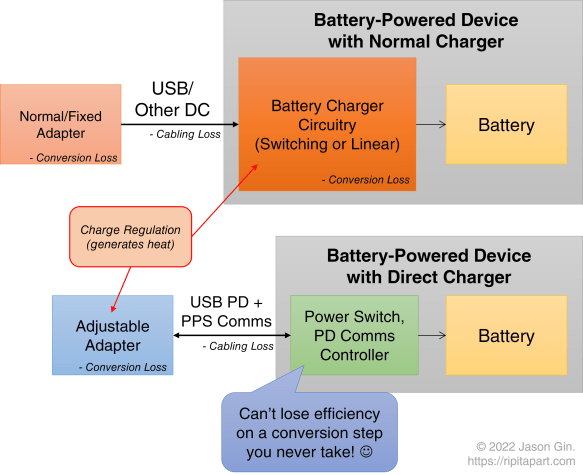
PPS charging is a relatively new variation to the existing PD charging scheme. It allows the device being charged to actively communicate with the adapter and request a precise voltage (and current) level, increasing efficiency since DC-DC conversion efficiency drops when the difference in voltage between the input (the adapter) and output (the battery) is larger. With this bidirectional communication, it allows the adapter to share some of the regulation workload, and therefore move some of the heat-generating power conversion to the adapter, allowing the device’s battery to charge at a cooler temperature which improves its lifespan.

Direct Battery Charging

One step past normal PPS charging is direct charging, which completely offloads the power management to the adapter; the host device controls the charge process purely via software commands to the adapter. This is analogous to the DC fast charging method used in electric vehicles (EVs), which also perform all power regulation outside of the vehicle and its internal charge circuitry. Because the device no longer needs to perform its own DC-DC conversion, this skips a step in the power conversion “chain”, increasing efficiency and reducing the amount of heat dissipated in the host device (you can’t lose power on a conversion step if you never perform that step in the first place!). With this reduction in internally-generated heat, the battery can be charged at even faster rates than it could with previous charging schemes.

One barrier to the widespread adoption of direct charging is that it requires the device to explicitly support it, as it requires significant changes to how the “power path” is designed internally. It also requires the adapter to support the voltage and current levels required by the host.

Diagrams comparing normal versus direct charging schemes.

Diagrams comparing normal versus direct charging schemes. (click here for full-size image)

Thankfully, on the adapter side, PPS support is becoming more and more common, even though most devices on the market (at least at the time of writing) don’t support it. However, because that potential is already present, perhaps there’s a way for the electronics hobbyist to take advantage of direct charging for their own batteries…

Shizuku Platform and its Lua API

The Shizuku USB multimeter by YK-Lab, which is available in a few rebadged forms under names like YK-Lab YK001, AVHzY CT-3, Power-Z KT002, or ATORCH UT18, is a very useful USB charger testing device. It features USB-A and USB-C ports; can measure voltage, current, power; can calculate passed charge (mAh) and energy (mWh) in real time; but unlike most USB testers on the market, it is user-programmable in Lua, a lightweight programming/scripting language.

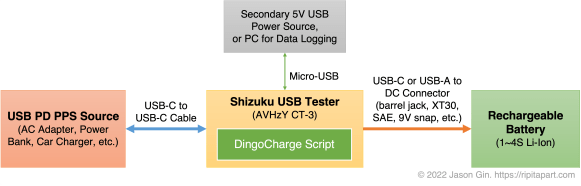
The Lua API on the tester provides a large amount of extensibility beyond the original tester’s design, and in my case I’m using its ability to “trigger” non-standard voltages from fast-charge capable power adapters as well as its colour LCD screen to act as a highly flexible direct charger – an intermediate between a USB-C PD PPS adapter and an arbitrary (Li-ion) rechargeable battery.

Introducing: DingoCharge!

The idea behind making a battery charging script came about when I looked at using bench-top adjustable power supplies to charge batteries. Since the Shizuku tester (in my case, it was the AVHzy CT-3 variant) allows me to use the PPS protocol to finely adjust the adapter’s output voltage, I tried manually varying the voltage to increase or decrease the current flowing into a battery – and it worked!

That said, constantly checking the battery’s current and voltage levels just to charge a battery gets pretty tiring, and since the Shizuku is Lua-programmable… why not make a script that automates all of this for me? Thus began a programming journey that’s been ongoing for over a year, and I’ve still got ideas to add even more functionality (as long as I don’t crash the tester by running out of memory… don’t ask me how I know).

Charge Regulation Algorithm

All lithium-ion batteries (including less-common ones like lithium-iron phosphate (LiFePO4) and lithium titanate) use what’s known as CC-CV charging; this stands for constant-voltage/constant-current. A fixed amount of current is fed into the battery until its voltage reaches a certain threshold, then the voltage is held at a fixed value until the current going into the battery drops below another, lower, threshold. Once this is reached, the current is turned off entirely and the charge process is complete.

Although the PPS specification allows a device to set a maximum current level, my own testing revealed that there was too much variation amongst all my different adapters that I could not rely on the hardware to perform the constant-current regulation with enough precision for my liking, and the voltage drop across the USB-C cable resulted in the battery’s charge current tapering off too early as the voltage at the adapter reached its programmed constant-voltage level before the battery’s own voltage had a chance to do so as well. Instead, my charge algorithm increases the requested USB PD charge voltage above the battery’s own voltage until the desired current level is within a certain deadband range.

Once the target constant-voltage level is reached, the charge algorithm switches to constant-voltage regulation, maintaining a preset voltage until the current being drawn by the battery falls below the termination threshold.

If a battery was previously overdischarged, it requires a slower “precharge” current to bring the battery’s voltage up to a level that is safe for its regular charge current.

Charge Safety Tests

Over time, I added more safety checks to ensure that the battery’s state was maintained within a safe margin for voltage, current, temperature, and also time. If a safety violation was detected during charging, the charging algorithm would automatically set its charge current to zero, effectively terminating the charge process. Additionally, if the charge process was finished but a small current flowing into the battery resulted in the battery’s voltage getting too high, the PD request voltage gets adjusted downwards to prevent an overvoltage condition from occurring.

Downstream Resistance Compensation

I also added the ability to compensate for high-resistance connections to the battery. This works by using Ohm’s Law (voltage = current * resistance) to boost the voltage thresholds in proportion to the amount of current flowing into the battery, as determined by a configured downstream (tester-to-battery) resistance. This is usually considered an advanced feature for a charging system, but since all of the charging is handled in software, it is relatively trivial to allow for compensating for lossy cabling and connectors.

Charging Test

As a real-world demonstration of the DingoCharge software, I created a test setup that charged a 600mAh/7.4V nominal battery pack (a rechargeable 9V alternative that’s built from disposable vape batteries – stay tuned for that blog post!) at a 1C (600mA) rate at 8.4V (4.2V per cell) until the current tapered off to C/10 (30mA); note that the pack I was charging was built with high-drain cells that can handle higher currents than normal, and most commercial cells are best charged at a C/5 to C/2 rate. I used a Samsung EP-TA800 USB-C adapter, capable of a maximum of 25W at full power (11V at 2.25A).

Demonstration of DingoCharge charging a 9V Li-ion replacement, using a Samsung 25W USB-C PD adapter.

Demonstration of DingoCharge charging a 9V Li-ion replacement, using a Samsung 25W USB-C PD adapter. (click here for full-size image)

Block diagram describing the DingoCharge hardware setup.

Block diagram describing the DingoCharge hardware setup. All power conversion (and associated power conversion losses) occur only in the power source, with the tester simply issuing commands to control the power going into the battery. (click here for full-size image)

Voltage/current plot of DingoCharge charging a battery at 600mA and 8.4 volts, using a Samsung EP-TA800 USB-C PD adapter.

Voltage/current plot of DingoCharge charging a battery at 600mA and 8.4 volts, using a Samsung EP-TA800 USB-C PD adapter. (click here for full-size image)

The classic CC-CV charge profile is visible when the charging current and voltage is graphed over time. The stepped nature of the current is a consequence of the PPS voltage being limited to 20mV granularity, causing jumps in current draw as each step occurs. The voltage is increased or decreased when the current or voltage being sent to the battery falls out of a certain range (in this case, 600mA and a +/-25mA deadband during constant-current charging, and 8.4V +/- 10mV during constant-voltage charging).

One contribution to the relative flatness of the constant-voltage phase is that the charging algorithm is essentially performing four-wire (also known as Kelvin) sensing from the adapter to the tester, inherently compensating for voltage drop across the USB-C cable. This is also why the current flutters a bit as it tapers off, as the voltage at the battery begins to rise above the deadband, resulting in a small amount of oscillation as the algorithm tries to maintain 4.2 +/- 0.01 volts.

Limitations

Nothing in this world is perfect, and neither is my charger implementation. In fact, trying to shoehorn a battery charger into what’s effectively a multimeter and a “wall wart” required a lot of compromises to be made.

No Power Switching

Charge termination is a bit tricky, as most implementations will just electrically disconnect the battery. However, with the tester, there is no power switching available that can be controlled through software. This is mitigated by setting the constant-current algorithm to 0 amps +/- 10 milliamps, resulting in minimal charge/discharge current as the battery voltage drops while it relaxes from a fully-charged state.

One Name, Many Variations

Another limitation is that the PPS protocol allows adapters to not necessarily support the full voltage range of 3.3 to 21 volts. Instead, there are options to support up to 5.9, 11, 16, and/or 21 volts, and at current level up to 5 amps. The large disparity of supported voltages and currents means that the DingoCharge script needs to check the programmed charge parameters against what the adapter supports; many PPS adapters only support up to 11 volts, so 3S (3 cells in series) and higher cell configurations will not work (and an error message will be displayed if that is the case).

My (Electro)chemical Romance Recharge

I designed DingoCharge only for use with lithium-ion type battery chemistries, but have been experimenting with charging other rechargeable batteries, such as lead-acid and nickel-metal hydride/Ni-MH. There has been promising results with both chemistries, but each one is not fully supported as I have not implemented proper 3-stage charging for lead-acid batteries; Ni-MH charging only works by using a low current (C/10 typical) for a fixed period of time via DingoCharge’s time limit feature, or an external temperature sensor alongside the overtemperature protection feature to stop the charge process (a very crude delta-T/change-in-temperature algorithm). Thankfully, the software-based approach of DingoCharge means I can add this functionality in an official capacity with further research and development work… as long as I get around to it 😛 .

Lua Lunacy?

Additionally, this was my first real foray into Lua programming, so I’m pretty certain I’ve made some poor stylistic and other programming choices along the way. For all I know, it could have inherited some significant syntactic defects from my other programming (language) attempts that make it an “awful” program – but hey, it’s an open-source project so if you have some pointers, feel free to help contribute on GitHub (link is in the Downloads section below)!

Conclusion

The USB PD protocol, and its adjustable PPS functionality that was introduced in the PD 3.0 specification, provides a lot of potential use for directly charging batteries since it skips the usual conversion step in a device. However, this type of charging technology was largely untapped by many devices, with only a few smartphones (as of the time of writing) supporting it.

The scriptability of some USB-C testers like the AVHzY CT-3 or Power-Z KT002 allows for a script to handle all of the intricacies of battery charging, while providing an easy-to-use yet highly flexible interface. Thanks to the DingoCharge script, any USB PD PPS adapter and supported USB tester can be used as a universal battery charger.

Downloads

The DingoCharge script can be found on my GitHub profile (https://github.com/ginbot86/DingoCharge-Shizuku), and is open-source under the MIT License. If you have a suitable USB PD PPS adapter and USB-C tester, I’d love to hear if/how well DingoCharge works for your batteries!

Quick Hack: Converting a computer fan from thermostatic to PWM control

As seen on Hackaday!

About a week ago I needed to replace the CPU fan in my home server as it was running slower than it used to. The Cooler Master Vortex Plus that I chose for my home server uses a standard 92mm fan, and uses the 4-pin connector standard to provide tachometer (speed) readout and PWM speed control.

The Vortex Plus fan’s sleeve bearing was proving to be the weak point of the cooler, and after many, many years of continuous operation, the bearings had lost lubrication and worn themselves down. I had another 92mm fan in my scrap bin, the Nidec TA350DC, but this would prove to be a challenge to adapt it for use in a normal computer system. This fan came from an old Dell Optiplex desktop and used a proprietary 3-pin connector (therefore there was no PWM control), and it was thermostatically-controlled. The fan used a 10kOhm NTC thermistor to measure the airflow temperature, and would increase its speed as the temperature increased (and therefore the thermistor’s resistance decreased). This would prove to be a challenge with implementing that fan as a CPU cooler, as the motherboard uses a PWM (pulse-width modulation) signal to control the fan speed. My proposed solution was to take advantage of the low-current thermostatic control circuitry and effectively override the fan’s own autonomous control system, as opposed to forcing the fan to run at full speed and using high-current MOSFETs to PWM the fan’s power supply, as I felt that doing so could disrupt the fan’s tachometer signal to the motherboard.

PWM Mod Circuit

I used the existing thermostatic control circuit to my advantage, since the thermistor forms the low side of a voltage divider. All I needed to do was use an N-channel MOSFET (specifically, the 2N7002) to short the thermistor pins when the FET’s gate terminal is pulled high, and I swapped the thermistor with a plain 10 kOhm resistor to effectively disable the fan’s autonomous control. I presumed the tachometer signal should be compatible with existing motherboards, and therefore not require any modifications.

As per the PWM fan control specifications, the speed control signal is a 5-volt digital signal, with a frequency of approximately 25 kHz and a variable duty cycle of 30-100%, and is a non-inverting signal. This is especially convenient as this means I don’t need to invert the logic signal before feeding it to the N-channel MOSFET controlling the thermistor input circuit. I did need to protect the gate from ESD (electrostatic discharge) damage, as the gate can only handle 20-30 volts before the gate’s microscopically thin insulation breaks down, rendering it useless. I used a BZX84 5.1-volt Zener diode to act as ESD and overvoltage protection. In the end, my assembled circuit board was actually slightly shorter than the thermistor it replaced!

Conclusion

After all this, I had a fan that would accept a PWM control signal and had at least some control over its fan speed. However, I later realized that the tachometer signal was not working, causing my motherboard to report that the fan had failed. At this point I didn’t really want to come up with another circuit (perhaps a Hall effect sensor) to sense the fan’s speed, so I simply took the easy way out and just disabled the warning in Intel Desktop Utilities 🙂 . I might revisit this mod sometime in the future if I need to do this again.


Hacking into Windows CE (and Doom) on the Magellan RoadMate 1412 GPS receiver

As seen on Hackaday!

Oh no, I’ve done it again haven’t I?

TL;DR: Just because a device runs Windows CE doesn’t mean it’ll just run Doom without much work.

About a week ago I was perusing some local garage sales, and stumbled upon an old GPS receiver – the Magellan RoadMate 1412. Magellan units are known to run Windows CE, so naturally I had to purchase it and do what needed to be done: run Doom on it. After shelling out $10 CAD for the receiver and its slightly-damaged car charging cord (no mounting bracket, though), it was time to take it home, clean it up, and send it to its Doom… (heh, get it? … I’ll see myself out.)

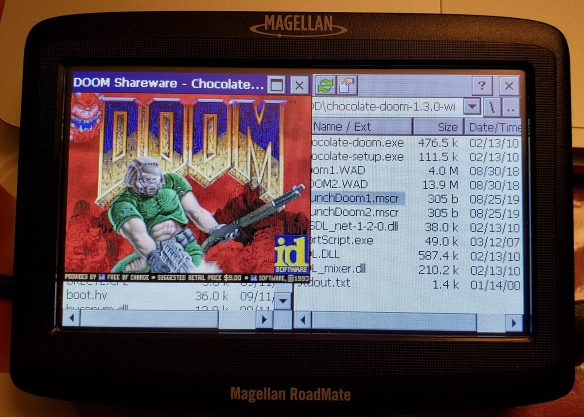
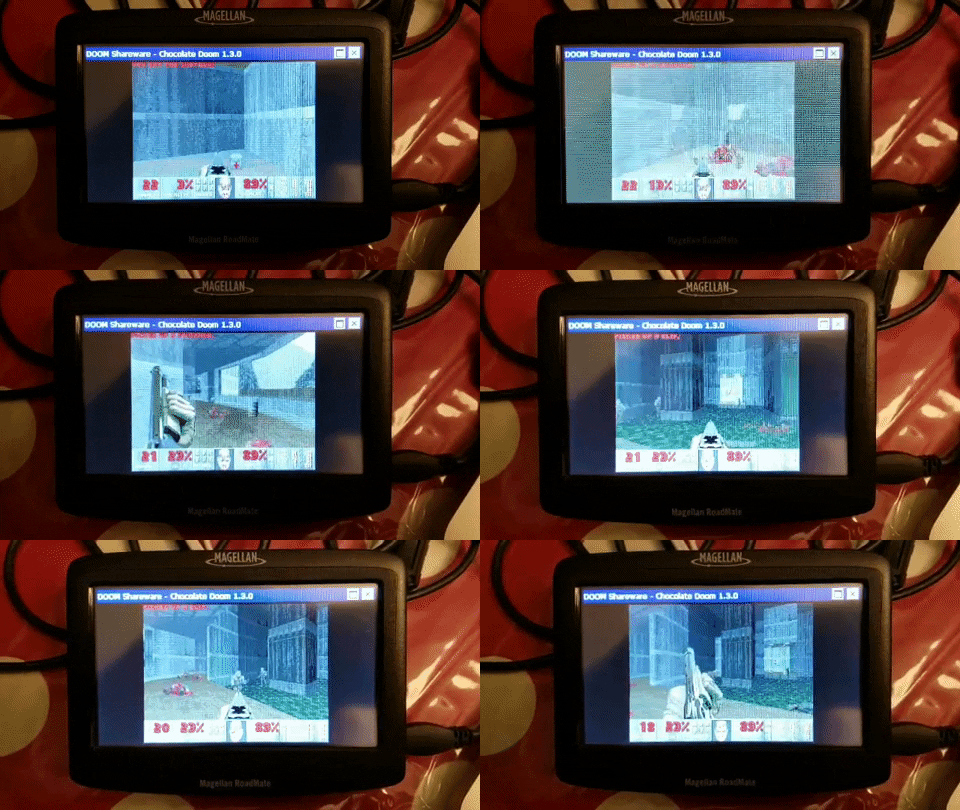
The Magellan RoadMate 1412 running Doom!

The Magellan RoadMate 1412 running Doom! It wasn’t nearly as easy as I first thought…

Considering that the device runs Windows CE 5.0, I figured that running Doom on it would be a piece of cake once I gain access to the underlying operating system. Should be pretty straightforward… right?

Wrong! Feel free to join me in my adventures in running Doom on a (perhaps excessively) neutered stripped-down Windows CE device.

Stage 1: Power-Up

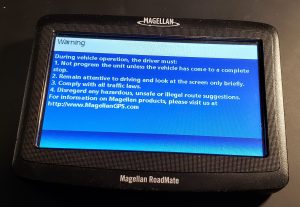
Turning on the unit wasn’t particularly exciting, although I expected the unit to not work until the internal battery received at least some charge. However, within seconds of me connecting the car charger to it, it powered on with the Magellan logo and a progress bar, before transitioning to the boot logo and the usual “don’t crash your car” warnings that GPS units tend to display on power-up.


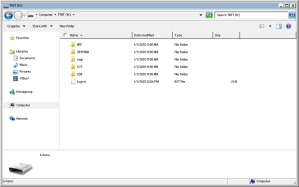
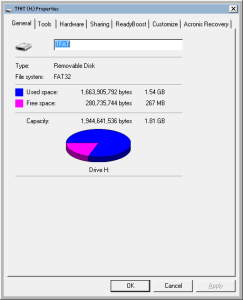
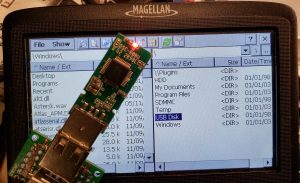
Unsurprisingly, the unit still works as a GPS unit, and there’s no immediately apparent way to exit the navigation app and slip out into Windows CE itself. However, after some searching, I found out that plugging in the unit causes it to appear on a computer as a USB drive, with the navigation app’s files all visible as a FAT32-formatted 2-gigabyte volume.


Stage 2: Not-so-Total Command

The navigation app’s files are stored in the “APP” directory, with the executables “Navigator.exe” and “mgnShell.exe” catching my eye in particular. I renamed the Navigator app to “MagNavigator.exe” as to allow a relatively easy revert in case things go wrong, and I copied TotalCommander/CE to replace the original navigation app. Rebooting the receiver didn’t appear to change anything until I dismissed the initial legal warning. Once I closed the notice, I was sent right into TotalCommander/CE, but with no taskbar in sight.


One strange thing I noticed was a distinct lack of icons in the folder list. Scrolling through the “\Windows\” directory revealed some rather disappointing revelations: we have no command prompt, on-screen keyboard, or Explorer shell (therefore, no desktop, Start menu or taskbar).

This meant that running Doom wouldn’t be nearly as easy as it was when I got it running on my Keysight DSOX1102G oscilloscope, as that device still had a (mostly) full Explorer shell and command prompt. Windows .lnk shortcuts failed to work either, causing TotalCommander to just redirect to the system root directory – and forget trying to use batch files! The Explorer components are so absent, third-party apps can’t even display Open or Save dialogs…

This presented a significant roadblock: Chocolate Doom for Windows CE requires command-line arguments. How am I supposed to run this with no Explorer shell or command prompt?!

Stage 3: Getting (Mort)Scripty

Without access to native Windows CE tools, I needed to find a third-party solution to run programs with command-line arguments – maybe some sort of scripting engine.

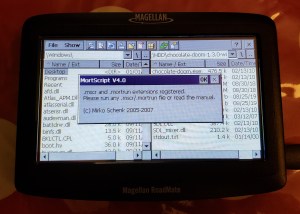
Enter MortScript. It’s a lightweight yet powerful scripting engine, with a Visual Basic-like syntax. It’s instrumental in making GPS mods like MioPocket possible. (On that note, before this point I wasn’t even aware that MioPocket even existed; I learned that it provides a lot of Windows CE functionality that’s otherwise absent on GPS units like mine, but I’ve come this far – I was determined to forge my own path to Doom.)


I tinkered with the example command syntax and used its Run() command to send the correct command-line arguments for Chocolate Doom: “chocolate-doom.exe -iwad [wad path]“. After running MortScript for the first time to register the .mscr file extension, I was ready to make my script:

# LaunchDoom1.mscr
#########################################
# Chocolate Doom for Windows CE Startup Script by Jason Gin
# Visit: https://ripitapart.com
# Version 1.0 (initial release)
#########################################

# Resource Paths (WAD and executable)
DoomWadPath = "\SDMMC\Fun\chocolate-doom-1.3.0-wince\Doom1.wad"
DoomExePath = "\SDMMC\Fun\chocolate-doom-1.3.0-wince\chocolate-doom.exe"

#########################################

# Step 1: Create required command-line arguments to start Doom:
DoomExeArgs = "-iwad " & DoomWadPath

# Step 2: Run Doom!
# Error checking is performed on whether the WAD file path is valid.
# This assumes that the executable path is valid.
# If it isn't, then nothing happens anyway.

If (FileExists(DoomWadPath))
Run(DoomExePath,DoomExeArgs)
Else
Message ("Error: Unable to find the WAD file at " & DoomWadPath & "!")
EndIf

Stage 4: Doom’d!

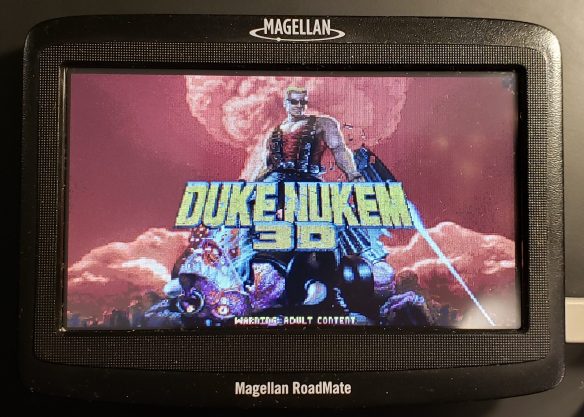
After running the script, I declared success: it runs Doom! The window was limited to its lowest supported resolution of 256×200, but running “chocolate-setup.exe” I was able to set it to 320×240 – not great, not terrible. Oh, and it also runs Duke Nukem 3D.


Unlike my previous Doom hack, I wanted to make the window fill the screen but not be in full-screen mode (without any physical buttons, I would otherwise be unable to regain control of the operating system). After some tinkering with the configuration files stored in “\My Documents\.chocolate-doom\chocolate-doom.cfg“, I changed the following settings:

autoadjust_video_settings     0
fullscreen                    0
aspect_ratio_correct          1
screen_width                  480
screen_height                 247

With this adjustment saved, I was able to get a more immersive Doom experience on my GPS receiver.

The Magellan RoadMate 1412 running Doom.

Magellan RoadMate 1412 Runs Doom

Extras

I wanted to see if I could get an external keyboard working on the receiver so I can actually play Doom instead of just letting the on-screen demo do its thing, so I rigged up a mini-USB On-The-Go (USB OTG) cord with a homemade USB B-to-A adapter so I can plug in USB peripherals to the charging port. Unfortunately, it seems that the receiver only supports USB drives, and refuses to work with USB input devices (like mice and keyboards); it doesn’t even work with USB hubs! Oh well, it was worth a try.


Conclusion

As is with many things in life, projects are often much more complicated than it might seem. Just because a certain device runs Windows CE doesn’t mean that all the of the expected components are actually available (after all, it is meant to be a highly modular embedded operating system). However, with the right tools, it can be done – and it keeps the adage of “It Runs Doom!” alive.

Atomic Pi Adventures, Episode 1: Adding external PCI Express expansion by removing onboard Ethernet

As seen on Hackaday!

TL;DR: The Atomic Pi single-board computer CAN be expanded through PCIe. It’s just a massive pain to do so, even if you have steady hands. Let’s just say it’s a long story…

DISCLAIMER: The modification performed in this blog post can, and has, caused permanent hardware damage to my Atomic Pi, albeit repairable with much skill and effort. Reenacting what I’ve done requires significant experience with SMT (surface-mount technology) components, some barely larger than a grain of sand (I consider 0402-size components to be “oversize” in this instance). I accept no responsibility for damages arising from attempting this modification.

Introduction

Single-board computers (SBCs) are all the rage nowadays, with the Raspberry Pi being the most well-known in this category. SBCs are compact computers, carrying their own CPU and memory, and usually some on-board storage and various I/O connections (e.g. USB, HDMI, Ethernet). Most of these computers use the ARM architecture, found on almost all mobile devices today. However, some use the x86 architecture, which is used in higher-end tablets, laptops and desktop computers.

Recently, the Atomic Pi made waves in the electronics hobbyist space, boasting an Intel Atom Z8350 quad-core CPU with 2 GB of RAM, 16GB of eMMC storage, Gigabit Ethernet, Wi-Fi, USB 3.0, built-in speaker amplifiers, and lots of general-purpose I/O (GPIO) pins – all for less than $40 USD!

As one might expect, there were caveats to this little computer, with some dismissing it very harshly, if not unfairly. With some investigative work, members of the community found out that the “Atomic Pi” board actually belonged to the Kuri robot from Mayfield Robotics; the company shut down in late 2018, and the liquidated stock of these SBCs were snatched up by Digital Loggers with the help of a Kickstarter campaign, who then developed breakout boards to make using them easier. This is because – unlike almost every other SBC – you can’t just plug in a barrel jack or USB cord to power it! Instead, it uses a 2×13 pin header, which many users did not have on hand, nor had the skill and/or resources to build their own solution. This is compounded by the board’s need for clean, well-regulated 5 volts at 2-4 amps, with 12 volts being optional to power the onboard speaker amplifier. The 16 gigabytes of eMMC storage proved to be too cramped to run Windows 10 directly, and the Realtek RTL8111G Gigabit Ethernet chipset is often frowned upon by those in the pfSense (a free firewall/router OS) community.

The NIC’s usage of the Z8350’s single PCI Express (PCIe) lane is what caught my attention. Unfortunately, the RTL8111G Ethernet chip is soldered to the board, with no easy method to replace it with an external card. A few people have attempted to remove the chip and wire in an external PCIe riser, without success. With my previous experience with fine-pitch electronics work, I figured that this would be a fairly easy modification to make.

It wasn’t. In fact, this was one of the most frustrating electronics projects I’ve done to date – and now you get to come with me in my adventures (and misadventures) in microsoldering on the Atomic Pi (or was it Kuri? The jury seems to be out on the nomenclature).

Optional Reading: PCI Express Signals

PCI Express (or PCIe for short) is a very common high-speed interface for connecting processors or chipsets to all sorts of different peripherals. It uses low-voltage differential signaling to minimize interference, and a single lane of PCIe can carry 250 MB/s for the first generation, all the way up to 2 GB/s for the fourth generation!

A single PCIe lane is made up of three differential pairs: receive, transmit, and a 100 MHz reference clock. Control signals for waking up and resetting peripherals are also provided. Riser cards, often used for cryptocurrency mining, use these five signals to provide the minimum connectivity for any PCIe peripheral. The interface is highly flexible, allowing graphics cards that normally use 16 lanes to run on just one lane. The specifications for PCIe make board design easier, as the differential lines are designed to adapt to different lane configurations; the polarities in a pair (transmit, receive, clock) are polarity independent (all that matters is that you maintain a good differential pair).

PCIe Signal Pinout

Since the Atomic Pi lacks a PCIe slot of any kind, I have provided the diagram indicating which signals go to what points on the board:

Note that the AC coupling capacitors are required for the peripheral Rx (receive) pair, and are optional for the peripheral Tx (transmit) pair.

Attempt 1: “Chipple” Bypass

I started this project with the intent of making my modifications as reversible as possible. Looking at the RTL8111E’s datasheet (a similar model to the 8111G) revealed the presence of an “ISOLATEB” pin; grounding this pin causes the chip to disable itself and release its hold on the PCI Express lines.

This brings us to the first roadblock: the Ethernet chip is soldered to the board, and the components that connect it are known as 0201 (0.002 inches in length, 0.001 inches in width), smaller than a breadcrumb!

After disabling the Ethernet chip, I used my trusty 0.1mm (that’s four-thousandths of an inch!) magnet wire to tap into the PCIe lines, and brought them out to a PCIe riser card, which provided a USB 3.0-type socket for an external connection.

Unfortunately, high-speed signals aren’t just about wiring from one device to the next, and this was no exception. The rat’s nest of wires were no suitable medium for the 5-gigabit signals to traverse (PCIe requires very tight control of electrical trace layouts), and the Atomic Pi was unable to detect the presence of any device on the external PCIe port.

Attempt 2: Thin Twinax Troubles

With the signaling issue in mind, I tried some very thin twinaxial cables from a dead MacBook’s hard drive cable to connect the PCIe lines to my riser card. This cable is very thin, with an outer thickness similar to fishing line. It uses a foil and wire “shield” around the two internal wires to protect it from external interference. I figured that this should help protect the delicate signals from the harsh outside world.

I didn’t have very much of this thin twinax cable on hand (that said, if anyone knows where I can buy this stuff in bulk, please let me know!), so I was limited to very short lengths for each pair. I ran out of twinax after the transmit and receive pairs, and resorted to using two coaxial cables from that same cable bundle.

After fiddling with the super-thin wires and soldering them to the header, I still got nowhere and could not get the Atomic Pi to see an external PCIe card.

Removing my modifications revealed my first blunder: despite placing the chip into a temporarily disabled state, the Ethernet chip was dead! This meant that I could not use the built-in Ethernet port anymore, and the LEDs next to the Ethernet port simply glowed a dull orange instead of their rapid blinking pattern when data is being transmitted over Ethernet. I figured that there was no use keeping the chip on the board, so I used my hot air rework station to remove it, using a generous amount of heat and flux to get the chip removed.

Attempt 3: To Ribbons, You Say?

With the dead Ethernet chip removed, I decided to use another tactic to bring out the PCIe interface. I decided to use a thin ribbon cable (okay, more accurately a “flat flexible cable”) to help decouple any mechanical stresses from moving the external USB 3.0 connector around during testing, and its compact size allowed me to try using the QFN pads to connect my ribbon cable, hopefully minimizing noise that could be picked up, as well as avoiding any “stubs” of wiring within the differential pair that would degrade the signals.

The challenge is that the chip uses a very small pad spacing, and I wanted to avoid soldering directly to the ribbon cable. I managed to salvage a couple connectors from some other devices, and used a cut-up CompactFlash memory card’s PCB to make it easier to solder the connector, as well as provide a base for the connector to sit on.

The connector on the board was affixed onto the Ethernet chip’s footprint with the help of some double-sided foam tape, and magnet wire was used to bond the PCIe signal wires onto the ribbon cable. The ribbon itself used copper foil on one side to help with interference suppression, and provide the signals a “ground plane” to travel across.

Things weren’t quite as elegant on the other end of the cable, however. I still had to contend with a fine-pitch ribbon connector, and a way to connect that to a male USB 3.0 plug to hook it up to the PCIe riser. I had little option except to use the small lengths of twinax from the last attempt, and (perhaps unsurprisingly) it didn’t work.

Attempt 4: Teeny Tiny Twists

The next attempt went to a smaller scale, using a very fine twisted pair I created out of my 40 AWG magnet wire (each wire is as thick as a hair). I then shielded this magnet wire by sandwiching it between pieces of copper tape to act as a ground plane for the signals. I reused a dead USB 3.0 drive to act as the plug for the PCIe riser, and wired it straight to the QFN pads of the original Ethernet chip.

Although the twisted pair would have, in theory, reduced intra-pair skew and some degree of EMI resistance thanks to the copper tape, the homemade twisted pair almost certainly would not have provided a 100-ohm differential impedance that’s required for PCIe signaling. Once again, the attempt to break out PCIe from the Atomic Pi was a failure.

Attempt 5: SASsiness Yields Results…?

Since the central issue with external PCIe connectivity involved the connection between the Atomic Pi board and the riser, I figured I would try a medium that was specifically intended for high-speed differential signals. I bought some thin SATA cables (specifically the 18-inch thin cables on Amazon), which used two pairs of thin SAS cable per SATA connection. The difference between SATA, SAS and PCIe is of little difference here, as the key criteria was a differential pair with 100-ohm impedance and ability to carry high-frequency signals.

Despite being a thin cable (each conductor is only 30 AWG, or 0.25 mm in diameter), these cables were too stiff to directly connect to the AC coupling capacitors without a very high risk of damaging the capacitor and/or the pad it is soldered to. I had to reinforce the cables by soldering them down and hot gluing the cables to the board at multiple points to relieve stress on the connections.

The original 0201-sized AC coupling capacitors were removed, and more reasonably-sized 0402 capacitors were used in their place. Each capacitor was a common 100nF capacitance, and were easy to harvest from some dead laptop motherboards I had on hand. I “flipped” the layout of the capacitors away from the QFN footprint, but this meant that only one side of the capacitor was actually anchored to the board; this made the capacitors very fragile and I often lost the terminations on the capacitors (thankfully they are plentiful in electronic devices like this).

To help minimize stress on the vulnerable capacitors, I used magnet wire as a flexible “bridge” between the capacitor and the SAS cable, and the cables were tied down to solder tab wire that I used as “bus bars” for a strong electrical ground as well as a tie-down point to take away most of the strain of the cable’s flexion. Despite negatively affecting signal integrity, I was able to get a sufficiently stable connection to perform some initial testing, and I succeeded! I was able to connect an Intel 82576-based dual-port network card to my external riser.

However, this didn’t last long. The simple movement of the wires on the board when trying to connect different peripherals was enough to break the AC coupling capacitors, despite the use of my flexible terminations from the SAS cable to the capacitors. Replacing the damaged capacitors and redoing the magnet wire terminations failed to restore connectivity, so I desoldered all of the existing connections and started over.

Attempt 6: We Have Lift-Off! (that’s bad)

In an attempt to further improve signal integrity, I decided to take the bold move of eschewing the flexible terminations of magnet wire, and decided to directly solder the SAS cable’s wires to the capacitors, which are soldered to the PCIe pads on the Atomic Pi. I anticipated that physical stresses would damage the capacitors, so I opted to use longer lengths of SAS cable, and to hot-glue the cable to the board at regular intervals to minimize the amount of stress that gets coupled into the cable and capacitors. The 100 MHz reference clock continued to use magnet wire for connection as it was at a much lower frequency than the PCIe signals, and reduced the amount of physical crowding around the PCIe pads.

This leads me to my next issue. To help with structural integrity, I repositioned one of the SAS cables so that it would remain on the board before going to the PCIe riser connector, meaning it would be perpendicular to the other cables. This required me to strip extra foil shielding to jump over the existing capacitors, which increases the risk of physical stress on the capacitors, as well as reduced signal integrity. Additionally, I used a longer set of twinax cables, sacrificing two SATA cables to get most of the original 18 inches of length per cable.

Testing of this construction method failed, and it was only at this point that I realized that two of the four AC coupling capacitors I used weren’t the same capacitance; PCIe usually uses 100 nF capacitors, but I had a 1 nF on one PCIe pair, and 10 nF on the other – no wonder things weren’t communicating (and that’s what I get for assuming the capacitors were the same)! Unfortunately, the process of removing the SAS cable connections resulted in the phenomenon I was trying to avoid: the board’s PERp0 (the positive side of the PCIe receiver) pad had lifted away from the PCB, leaving me with an unsolderable crater.

Attempt 7: Success!

After losing one of the pads for the original coupling capacitors, I was feeling pretty defeated. I didn’t let this stop me, and I decided to apply my magic skills with 40-gauge magnet wire to the trace, and was able to get a sufficient connection with a replacement 100 nF capacitor (and this time I measured it…), hopefully in such a way as to not too negatively affect signal integrity. Unfortunately, the 0201-sized resistors used to connect the PCIe reset and wake signals lost their terminations and no longer took solder on one end; I opted to keep the resistors in place and soldered magnet wire to the other end (facing the SoC rather than the Ethernet chip), as further measurement revealed that the resistors were simply 0-ohm jumpers anyway. I scrapped the longer SAS cables, and went back to the ~8-inch lengths to reduce attenuation.

After rewiring the PCIe data, clock and control lines, I crossed my fingers and retried the riser with my Intel NIC – and it worked! After verifying the connections were sufficiently strong, I decided to make the modification permanent, and covered the area with epoxy to prevent any of the components from breaking loose. Additionally, I used some aluminum sheet metal, double-sided foam tape and some zip ties to create a reinforcement bar, helping to strengthen the cable connections as they leave the board.

With all the connections in place, it was time to get to the fun part: seeing what PCIe peripherals work on the Atomic Pi!

Testing Results

One interesting behaviour of the Atomic Pi when using Windows is that changing PCIe cards often causes the system to immediately power down or freeze during boot. Simply powering the board on again seems to fix this issue. Why am I using Windows? I already upgraded the board to a 64GB eMMC instead of the original 16GB, and the appeal of the Atomic Pi’s x86 architecture was the ability to run desktop apps – in particular, Windows apps.

The UEFI firmware has a hidden advanced menu, accessible if the “shutdown /r /fw” command is run as administrator. There is a section for PCIe settings, and the ones that interested me were the AER (Advanced Error Reporting) and PCIe hot-plug settings. Unfortunately, these do not seem to have any effect as Windows doesn’t seem to pick up any hardware events in the Event Log.

Test 1: Network Devices

PASS: Intel 82576 Dual-Port Adapter

If the port(s) have a connection to another device (e.g. a network switch), the orange and green LEDs will illuminate soon after the PCIe link is properly initialized, which makes for quicker troubleshooting. Even if the system is off, the green link LED remains lit, but goes out once the PCIe bus is reset.

The card works a treat in pfSense and Windows, allowing high-performance Gigabit-speed transfers with both ports in use. However, the UEFI firmware does not recognize the card as a bootable medium (which is for the best in my opinion – the PXE boot program tends to hinder the boot process more than anything).

PASS: Realtek RTL8111GS (External Card)

The PXE network boot program built into the UEFI firmware works just fine, which is expected as the chip is the same type as the original RTL8111G, with the exception that the chip has a built-in switching converter rather than the linear LDO that the Atomic Pi uses natively.

PASS: JMicron JMC250

The card works in Windows and pfSense; the particular card I have has always been flaky in operation, and this was no exception.

PASS: ASUS PCE-N15 (Realtek RTL8192CE) 802.11n WLAN Adapter

Using this card is a performance downgrade compared to the dual-band adapter already present on the Atomic Pi, but it did function correctly in Windows.

Test 2: External Graphics Cards (eGPU)

PASS: EVGA/nVidia 8500 GT

The UEFI firmware doesn’t seem to want to acknowledge the presence of PCIe graphics adapters, which results in issues when testing in Windows. Initially, the card failed to enumerate correctly, identifying as a Microsoft Basic Display Adapter and displaying an error in Device Manager:

This device is not working properly because Windows cannot load the drivers required for this device. (Code 31)

The driver trying to start is not the same as the driver for the POSTed display adapter.

Manually downloading and installing the drivers allowed the card to work properly. As previously mentioned, the UEFI does not recognize the presence of the graphics card, so a monitor that is plugged into the graphics card won’t start working until Windows is loaded and the graphics driver initializes.

Additionally, the adapter’s resources won’t be used if the monitor is connected to the Atomic Pi’s built-in HDMI port – it’s a tradeoff between graphics performance and the ability to see what’s happening on boot; maybe this is different in a multi-monitor configuration, but I didn’t have enough desk space to test this.

PASS: XFX/AMD Radeon 4650

The same driver issues popped up when using this card as well, and the same fix applies.

PASS: ASUS/nVidia GTX 660 Ti

Ditto. This card was the best I had on hand for testing, and amusingly it consumes about 10-20 times the amount of power that the Atomic Pi uses, and is bigger in size as well.

Connecting this card allowed me to run games that would otherwise simply not work, such as Just Cause 2. It performed at about 20-30 frames per second: not great but not terrible. Just Cause 3 was absolutely painful to run, but this is not surprising as the Atomic Pi’s hardware is far below the game’s minimum requirements in almost all aspects.

Test 3: Storage

PASS: Dell PERC H200 SAS Adapter

To my surprise, not only will it work in Windows, it even supports booting from the UEFI! It mentions a SAS controller driver during boot, but I am not sure as to whether this is present in the Atomic Pi’s UEFI, or if it is a driver provided by the SAS adapter itself. The PCIe 2.0 1x interface limits the maximum throughput to less than 500 MB/s, which is slower than a single SATA III connection, and informal testing showed a maximum speed of about 330 MB/s. I have not investigated whether I could configure the hardware RAID features of the adapter from the operating system, but I imagine that doing so would dramatically improve performance when running a RAID 1 (mirrored) setup.

FAIL: OWC (What’s This?) Aura Pro X 480GB NVMe SSD

This SSD was originally meant as an aftermarket SSD upgrade for a MacBook Air, but I bought a PCIe adapter card to use it in a regular PC. I was able to get it to enumerate in Windows, but any sort of read/write action caused it to lock up and throw errors in the Windows Event Log. I suspect this is likely a power supply issue due to how the PCIe riser board provides power (12 volts -> DC/DC converter -> 3.3V LDO linear regulator), or maybe the card just doesn’t want to cooperate.

FAIL: Marvell 88SE9128 2x SATA III + 1x PATA UDMA-133

This adapter caused Windows to almost freeze during boot. Instead, the boot animation would advance by one frame every 2 seconds until the card is removed. I suspect this is the PCIe bus attempting to negotiate a connection but failing, possibly due to signal integrity issues. Checking the Windows Event Log turned up nothing either.

Test 4: … More PCIe?

FAIL: Extender Cable

One would think that a simple straight-through cable would work, right? Nope – it seems like the signal has already been degraded enough after traveling across multiple non-ideal connections, and the extra length in a cable was just enough to degrade the signal beyond recovery.

PASS: PCIe Port Multiplier / ASMedia ASM1184e

UPDATE (July 3, 2019): It seems that the “USB 3.0” pinout on these PCIe risers is inconsistent. I was somehow able to make do by using a PCIe card plugged into my current riser, which then led to the ASM1184e board, which splits the PCIe 2.0 1x lane into four slots. It seems like the chip is able to handle the attenuation over such a long cable length, and it even includes a 100 MHz clock buffer, effectively “refreshing” the signal for more sensitive PCIe cards.

I tried the 88SE9128 card again, but still had no luck. Ethernet cards worked without issue, but I wasn’t able to test the graphics cards as the ASM1184e board’s PCIe slots are closed-ended 1x slots. I could try cutting the edge of the connector to allow for larger cards, but that’s an experiment for another day.

Conclusion

Despite all the roadblocks I encountered in this project (sometimes rage-inducing ones), I still enjoyed this project and the various techniques I tried along the way. The prospect of attaching desktop PCI Express peripherals to a CPU designed for a tablet opens up many different applications for the Atomic Pi, including ones that would otherwise have been less efficient or impossible using the board’s built-in hardware (e.g. dual Gigabit Ethernet without using USB, or GPU-intensive computing workloads).

The high-speed nature of modern computer systems presents many challenges for engineers and modders alike. Multi-gigabit interfaces easily reach into the realm of radio-frequency (RF) electronics, where things like AC transmission line effects and differential signal routing become very important. This issue, coupled with the fact that most modern devices use very small components, makes it difficult for many electronics hobbyists to access these interfaces on their own. Although a modification like what I did is technically possible, I don’t consider it practical for an average electronics/computer enthusiast.

Future Ideas

One avenue I’ve thought about pursuing is a mod board that is soldered onto the Atomic Pi’s PCB, allowing a more robust connection for the PCIe lines; this would include signal integrity improvements like ESD protection and PCIe line redrivers to strengthen the signals to/from the SoC and peripheral(s). PCB design is currently beyond my scope of knowledge, but it would be a fun way to dive right into the subject matter.

Upgrading a passive Power over Ethernet splitter with 802.3af compatibility

As seen on Hackaday!

If you haven’t heard of Power over Ethernet, chances are you’ve experienced its usefulness without even knowing about it. Power over Ethernet (PoE for short) does exactly as the name implies: power is sent over the same Ethernet cable normally used for data transfer. This is often used for devices like IP phones and wireless access points (often you see these APs in restaurants and other establishments mounted to the ceiling to provide Wi-Fi access), as it is far easier, cheaper and safer to provide low-voltage power instead of wiring in AC power which requires the help of a licenced electrician.

A (Very Simplified) Background on Power over Ethernet

The actual PoE standards (click here to learn more) IEEE-802.3af (up to 12.95 watts), 802.3at (up to 25.5 watts) and the newest 802.3bt (up to 60-90 watts) standards provide vendor-independent methods for sending and receiving 48-volt DC power over the Ethernet cable without frying the device on the other end if it’s not equipped to receive power. The PSE (power sourcing equipment) manipulates the Ethernet pairs to sense the presence of a PD (powered device), then queries what power level it should provide; after this negotiation phase, the PSE finally sends 48 volts to the PD (usually on pins 1/2 and 3/6, called Alternative or Mode A) and all is merry, thanks to the help of “phantom power“. However, cheaper devices are available which skip this and simply shove DC power over the Ethernet cable with no regard to the safety or well-being of the remote device – this is called “passive PoE”. There are no regulations regarding passive PoE, but they generally send DC power (often 12, 24 or 48 volts) over Ethernet pins 4/5 and 7/8 (called Alternative or Mode B), usually shorting the two pins on each pair for easy power transmission at the expense of being limited to 10/100 Mbps speed.

Many years ago (I’m talking back in high school, over 6 years ago), I bought some cheap PoE equipment – a D-Link DWL-P200 PoE injector and splitter kit – assuming it was compatible with 802.3af due to its use of 48 volts… it wasn’t. Since I bought this on a trip to the US and I live up in (the arguably nicer 🙂 ) Canada, I couldn’t be bothered attempting to return it to the Fry’s that I bought it from; it served some use powering a wireless router for a few years before I ditched it in favour of a ZyXEL GS1920HP-48HP 802.3at-compatible switch and Ubiquiti UAP-AC-PRO access point. It then sat in my junk bin for a while before I took it back out and conjured up a solution to make the splitter compatible with the PoE standard; this way I could tap into my existing 802.3at-compatible infrastructure I wired into my house (or perhaps use it to siphon a couple watts in other places 🙂 ).

Note I am using the word “compatible” and not “compliant” since this definitely does not attempt to comply with all of the electrical specifications contained in the 802.3af/at standards; however, I have tested this on 802.3af and 802.3at Ethernet switches and have had no issues with the upgraded splitter. One significant attribute is that true PoE requires electrical isolation and my splitter certainly does not provide it; for my use this isn’t an issue and even some commercial splitters omit this feature to reduce cost.

Modifying the D-Link DWL-P200 for 802.3at Compatibility

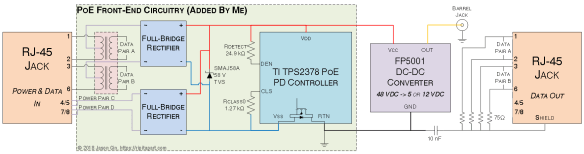
The DWL-P200 is a near-ideal candidate for conversion to 802.3af/at (I’ll call it “active PoE” from now on) since it already uses 48 volts for power – all it really needs is an active PoE-compatible front-end which requires an Ethernet isolation transformer, two diode bridges, a TVS (transient voltage suppression) diode, a 802.3af PD controller chip (and a partridge in a pear tree?). Easy enough, right… right?

Step 1: Prepare the Power Interface

The DWL-P200 splitter does not use a diode bridge on its power input (pins 4/5 are positive and pins 7/8 are negative), but active PoE requires that PDs include diode bridges for polarity-insensitive operation. Additionally, the splitter does not have an isolation transformer normally used for Ethernet; rather it had 10 ohm resistors on pins 1/2 and 3/6 as series coupling between the input and output – these were removed to provide a spot to install the centre-tapped isolation transformer that active PoE requires for Mode A (power on pins 1/2 and 3/6).

After harvesting an Ethernet transformer from a dead MacBook (seriously, dead computers make for great component stores), I scraped away insulation on the differential data pairs and used 40-gauge magnet wire to connect each pair to the transformer, and used 30-gauge Kynar wire for the power lines which are connected to the centre tap of each pair. To affix it, I used a blob of hot glue (which turned out to be pretty useless since this board runs HOT!), and ran the wires off to one of the diode bridges in the front-end I built.

The data output pins (1, 2, 3 and 6) are terminated to an AC-coupled ground using 75 ohm resistors, often referred to as “Bob Smith termination” to help reduce noise.

Step 2: Build the PoE PD Front-End

The actual front-end was built as two separate boards: the first was the power input board; the second was the 802.3af active PoE PD controller, which had its own construction considerations that I’ll address in a bit.

The power input board is pretty simple and was comprised of two Bourns CD-HD201 60-volt Schottky diode bridges and a SMAJ58A 58-volt TVS surge suppression diode to help overcome voltage spikes that can occur when a cable is unplugged due to the inductance in the cable itself. The inputs of the diode bridges were then connected to the centre taps of the Ethernet transformers and the original pins 4/5 and 7/8 on the power/data input of the splitter.

The second board is the PoE PD controller, which is responsible for negotiating with the 802.3af/at PSE controller at the other end of the cable. I used the Texas Instruments TPS2378 PoE PD controller, which was meant for 802.3at Class 4 (25.5 watts maximum) but I’m only using it for 802.3af Class 0 (up to 12.95 watts). The TPS2378 has a heat-sinking “PowerPAD” on the bottom which must be connected to Vss (ground); I used solar cell tabbing wire underneath and created a sort of fin-like arrangement on the unused area of the DipMicro SOIC/TSSOP-to-DIP adapter board (they don’t sponsor me – I just really like their adapter boards!). The external PoE detection and power class signal resistors were soldered to the DIP pads on the adapter to save space.

Step 3: Put it Back Together Again

Once the two boards were assembled and connected to the original FP5001 DC-DC converter‘s input, the boards were nestled inside the original case and some Kapton tape was wrapped around the case since I damaged some of the plastic clips that held it together during disassembly.

Conclusion

With the active PoE upgrades installed, the splitter now works with 802.3af, 802.3at and passive 48 volt PoE power sources. However, the internal construction of the splitter means it only supports 10/100 Mbps Ethernet. Additionally, I find that the board gets very hot under full load (I’ve measured internal temperatures well above 100 degrees C when the case is closed) which negatively impacts its efficiency, but I consider it a fair trade-off considering this was never meant to work on active PoE in the first place.

eMMC Adventures, Episode 2: Resurrecting a dead Intel Atom-based tablet by replacing failed eMMC storage

As seen on Hackaday!

Recently, I purchased a cheap Intel Atom-based Windows 8 tablet (the DigiLand DL801W) that was being sold at a very low price ($15 USD, although the shipping to Canada negated much of the savings) because it would not boot into Windows – rather, it would only boot into the UEFI shell and cannot be interacted with without an external USB keyboard/mouse.

The patient, er, tablet

The tablet in question is a DigiLand DL801W (identified as a Lightcomm DL801W in the UEFI/BIOS data). It uses an Intel Atom Z3735F – a 1.33GHz quad-core tablet SoC (system-on-chip), 16GB of eMMC storage and a paltry 1GB of DDR3L-1333 SDRAM. It sports a 4500 mAh single-cell Li-ion battery, an 8″ 800×1200 display, 802.11b/g/n Wi-Fi using an SDIO chipset, two cameras, one microphone, mono speaker, stereo headphone jack and a single micro-USB port with USB On-The-Go support (this allows the port to act as a USB host port, allowing connections with standard USB devices like keyboards, mice, and USB drives).

Step 1: Triage & troubleshooting

The first step was to power on the tablet to get an initial glimpse into the issues preventing the tablet from booting. I was able to confirm that the eMMC was detected, but did not appear to have any valid MBR or file system; therefore, the UEFI firmware defaulted to entering the UEFI shell (which was of little use on its own as there is no on-screen keyboard available for it).

DSC_2191

DigiLand DL801W with UEFI shell

However, one can immediately notice there is an issue with the shell: how do you enter commands without an on-screen keyboard? The solution was to use a USB OTG (On-The-Go) dongle to convert the micro-USB type B port into a USB type A host port.

Using the shell commands, I tried reading the contents of the boot sector, which should end with an MBR signature of 0x55AA. Instead, the eMMC returned some nonsensical data: the first half of the sector had a repeating byte pattern of 0x10000700,  and the second half was all zeroes (0x00) except the last 16 bytes which were all ones (0xFF). The kicker was that this data was returned for every sector I tried to read. No wonder the eMMC was unbootable – the eMMC had suffered logical damage and the firmware was not functioning correctly.

After creating a 32-bit Windows 10 setup USB drive (these cheap low-RAM PCs often use a 32-bit UEFI despite having a 64-bit capable CPU), I opened Hard Disk Sentinel to take a deeper look at the condition of the onboard eMMC.

DSC_2198

Malfunctioning Foresee 16GB eMMC visible in Hard Disk Sentinel

The eMMC identified itself with a vendor ID of 0x65, and an MMC name of “M”. It reported a capacity of 7.2 GB instead of the normal 16 GB, another sign that the eMMC was corrupted at the firmware level.

DSC_2199

Foresee 16GB eMMC returning corrupted data

Using HDS, I performed a read scan of the entire eMMC despite its failed condition. The read speeds were mostly consistent, staying between 40 to 43 MB/s. A random read test revealed a consistent latency of 0.22 ms.

In order to assess whether the eMMC was writable in its current state, I ran a zero-fill and subsequent read scan. The eMMC appeared to accept writes but did not actually commit them, as HDS threw verification errors for all sectors.

After the tests in HDS, I decided to attempt an installation onto the eMMC to assess its writability. Windows Setup failed to create the disk partition structures, throwing an error message reading “We couldn’t create a new partition or locate an existing one”.

Step 2: Teardown & eMMC replacement

Since the onboard Foresee NCEMBS99-16G eMMC module was conclusively determined to be faulty, there was no point keeping it on the tablet’s motherboard. This also provided an opportunity to upgrade the eMMC to a a larger and faster one. Since this required the tablet to be disassembled, I decided to do a teardown of the tablet before attempting to replace the failed eMMC module (the teardown will be in a separate blog post when the time comes).

After removing the insulating plastic tape on the bottom of the PCB, I masked off the eMMC with some kapton tape to protect the other components and connectors from the heat of my hot-air rework station. With some hot air and patience, the failed Foresee eMMC was gone. This also revealed that the eMMC footprint supported both the 11.5×13 mm and 12×16 mm sizes, but the 12×16 mm footprint did not have the extra 16 solder balls for reinforcement (most eMMC balls are unused so their omission had no negative functional effect).

DSC_2215

Foresee eMMC removed from DL801W’s motherboard

Instead of a barely-usable 16 GB of eMMC storage, I opted to use the Samsung KLMBG4GEND-B031 – a 32 GB eMMC 5.0 module. This chip boasts more than 2000 IOPS for 4K random I/O, which should be a boon for OS and application responsiveness.

DSC_2219

Replacement Samsung KLMBG4GEND-B031 eMMC installed

A little flux and hot air was all I needed to give the 32 GB eMMC a new home. Time to reassemble the tablet and try installing Windows 10 again.

Step 3: OS reinstallation

After spending a few minutes cleaning the board and reinstalling it in the tablet, it was time to power the tablet back on, confirm the presence of the new eMMC and reattempt installing Windows.

DSC_2221

Installing Windows 10 from USB drive via USB-OTG adapter

The eMMC replacement proved to be successful; within minutes, I was off to the races with a clean installation of Windows 10.

Conclusion

DSC_2223

DL801W restored, running Texas Instruments’ bqSTUDIO software

This was a pretty fun project. With some electronics and computer troubleshooting skills, I had a tablet capable of running desktop Windows programs. Its low power consumption and USB host capabilities made for a great platform to run my Texas Instruments battery hardware and software without being tethered to my desktop.

However, I was not finished with this tablet. The 1 GB of onboard RAM made Windows painfully slow to use, as the CPU was constantly bogged down performing memory compression/decompression. The 32GB of eMMC storage I initially installed began feeling cramped, so I moved to a roomier 64GB (then 128GB) eMMC.

I won’t go into the details of how I upgraded the RAM in this post, as it’s a long story; simply put, soldering the RAM ICs was the easy part.

Pick a Card, Any Card: Fast and easy Windows logon using any NFC smart card

UPDATE (September 27, 2018): Fixed a broken link to the article on bypassing MSI installer checks.

After finally reinstalling Windows on my main PC (the smart card components in the old install were trashed), I dusted off the old smart card reader and started looking into smart card-based logon options again.

Windows logon screen using a smart card

Windows logon screen using a smart card

After finding a way to force convince the installer for EIDAuthenticate, a program that lets you use smart cards to log on a Windows computer without the use of domains and Active Directory, to run on Windows 7 Professional (Microsoft DreamSpark only lets me obtain the Professional editions of Windows), I found a program called NFC Connector Light that lets you use any NFC-compatible smart card as a means of authentication.

Virtual smart card with certificate installed

Virtual smart card with certificate installed

NFC Connector Light links the unique identifier in an NFC-based smart card to create a virtual smart card on the local computer (no data is stored in the card itself), and that virtual card can be used like a real smart card within Windows. When paired with EIDAuthenticate, logging on is as simple as placing the smart card on the NFC reader and entering a PIN. This is especially useful when you set the Windows smart card policy to lock the computer when the card is removed (and it feels kind of cool to be able to lock your computer simply by taking your card off the reader).

Tearing down and modifying the Mars RPB60 power bank

A while ago I mentioned purchasing a very cheap battery pack that obviously didn’t live up to expectations. However, I didn’t get a chance to write about a more capable power bank, the Mars RPB60. It was branded as a SoundLogic/XT power bank, and holds 4400 mAh of battery capacity, with two USB ports (one labeled for 1 amp and 2.1 amps) and a micro-USB power input.

The power bank

The power bank from the outside looks pretty nondescript, with two USB ports, a micro-USB input, a button and four blue LEDs. Initially it seemed that there wouldn’t be any easy way to open up the casing without damaging it, so I tried to pry away the plastic covers at the ends. Doing so revealed plastic plates held in with small Phillips screws. Disassembly from that point was a cinch.

Removing covers reveals hidden screws

Removing covers reveals hidden screws

The PCB portion of the pack is of a stacked design. The two halves are connected with a set of small pin headers, with one side being the main DC-DC converter and USB output, and the other being the “gas gauge” and charging circuitry. The reason I put the phrase ‘gas gauge’ in quotes is that it’s only going by pure voltage thresholds, making it inaccurate when under load (like charging a phone and tablet, for example).

2014-01-05 00.25.02The main microcontroller is an unmarked 14-pin SOIC (likely an OTP-based PIC clone) and a TP4056 Li-Ion charging IC. The DC-DC converter is a DFN package that I couldn’t find any data on, but from what I can tell it integrates the DC-DC converter control circuitry and the switching MOSFETs.

2014-01-05 00.26.41

Blurry photo of microcontroller/charger PCB, taken with a potato for a camera. 😛

2014-01-05 00.27.16 Cells

The cells themselves seemed to be of good quality, but the bastards at Mars decided to black out the branding and model number of the cells! However, I was unphased at their attempt to cover up what cells they were using. With a careful cleaning with flux remover and some Kimwipes, I found that this pack uses ATL INR18650 cells with a DW01-based protection circuit. These cells hold 2200 mAh each, and the INR prefix means that these are high-power cells intended to provide heavy output currents. This is desirable as a 10 watt load like an iPad would definitely put heavy strain on the batteries. Considering the good cells they used, I don’t understand why they’d want to hide the markings on the cells (and in a half-assed way too!)…

The initial capacity was at about 4800 mAh (greater than the rated capacity 😀 ) with an average ESR of about 63 milliOhms. However, after a dozen charge-discharge cycles, the capacity has decreased to 4630 mAh and has an average internal resistance of 190 milliOhms. I’ve got a feeling charge cycle endurance may be an issue with this battery pack. Time will tell…

Gas gauge hacking

Since this battery pack didn’t have the gas gauge capabilities I wanted (voltage threshold-based gauging isn’t enough!), I decided to put in my own. I built a small bq27541-V200 gauge board with an external thermistor and current-sense resistor, using the breakout board itself to hold all the SMD passive components required for the gauge to function. The thermistor is taped to the cells to get an accurate temperature reading, and the current-sense resistor is attached in series between the cell’s negative terminal and the negative contact of the protection circuit.

Gas gauge chip added

Gas gauge chip added

This is where the hacking happens. I connected the I2C lines to the left USB port’s data lines. The voltage divider used for Apple devices is very high-resistance and makes for good I2C pullup resistors. The device still appears as a normal device charger but works just fine when the I2C signals are hidden behind the USB lines.

Quirks

However, the design for my gauge is definitely not the best one. I noticed that with heavy use (and not even one full discharge cycle), the gauge had reset 4 times without me knowing. Of course, I’m not expecting great performance from this gauge since it’s extremely susceptible to EMI (long wires looping around are just asking for trouble 🙂 ) in its current state. Given how I basically hacked this together in a matter of a few hours, it works well enough. Next up is to go into Altium Designer and make a proper gas gauge board with good EMI and RFI mitigation (and perhaps sell them on Tindie; the hobbyist community needs better gas gauges and stop being so paranoid about Li-Ion batteries).

Further testing showed that certain phones put pulses on the USB lines which has occasionally caused the bq27541 to crash and reset as well.

Additionally, I’ve noticed that the DC-DC converter circuit is quite inefficient. It has 5-7 mA of quiescent current draw and has about 60-80% efficiency. At a full charge, it will take only one month before all the charge is drained from the cells and the protection circuit disconnects the cells.

Future plans

Since this battery pack has a nicely built casing, I intend to gut the battery pack, design new PCBs inside with good DC-DC conversion, an Impedance Track-based fuel gauge, and an onboard microcontroller with some battery-logging capabilities (perhaps to an EEPROM or an SPI Flash ROM), accessible through the micro-USB port. I also plan to use some higher-capacity cells, like the 3400 mAh Panasonic NCR18650B.

If not, then at least I want to replace the microcontroller with one that will read the bq27541’s state of charge readings and display them on the LED bar graph.

Convenient chips but even more inconvenient packages – Fail, fail, fail and fail again: Trying to solder the TPA2011D1 speaker amplifier

I was doing some prototyping of the TI TPA2011D1 3 watt Class-D amplifier that’s in a 1.2 x 1.2 mm 9-ball BGA package. Unlike my tries with the bq27421, these chips are downright painful to solder. Out of 5 chips that I’ve tried to solder, only one of them actually worked. That’s a 20% success rate. Bummer. The only thing that’s preventing me from being any more angry about these chips is that my back and shoulders hurt quite a bit after hunching over to try and solder these bastards for a good 6 hours.

“Thumbs down!” –Dave Jones

2013-07-25 01.35.11